What changed in v1.1
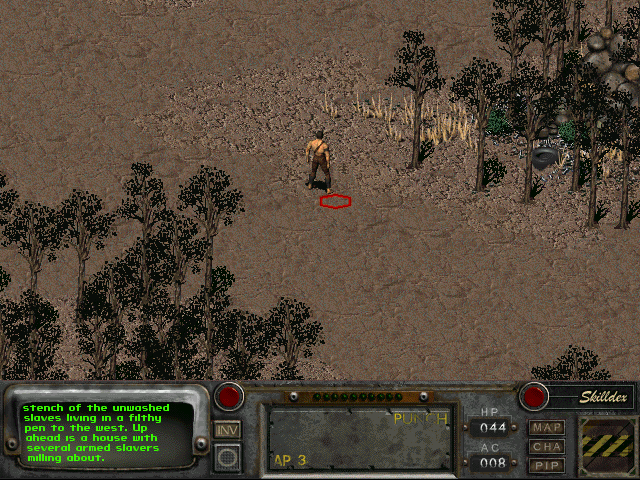
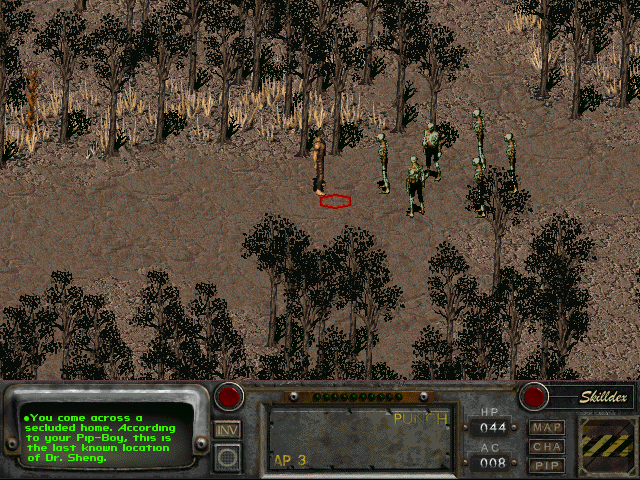
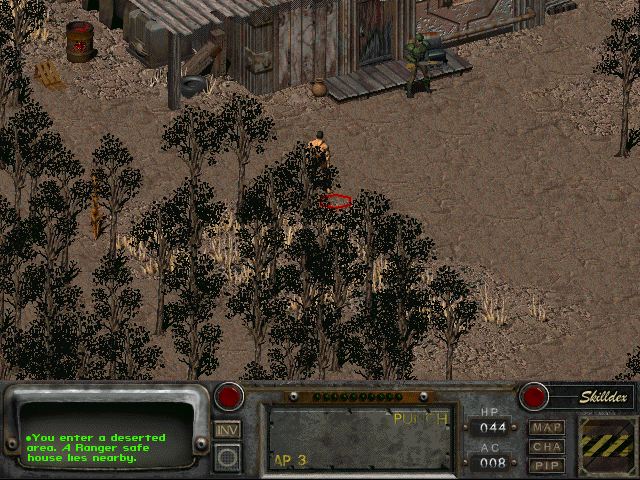
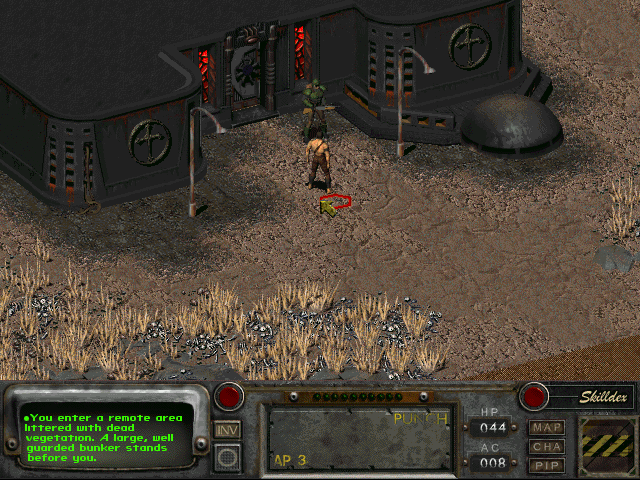
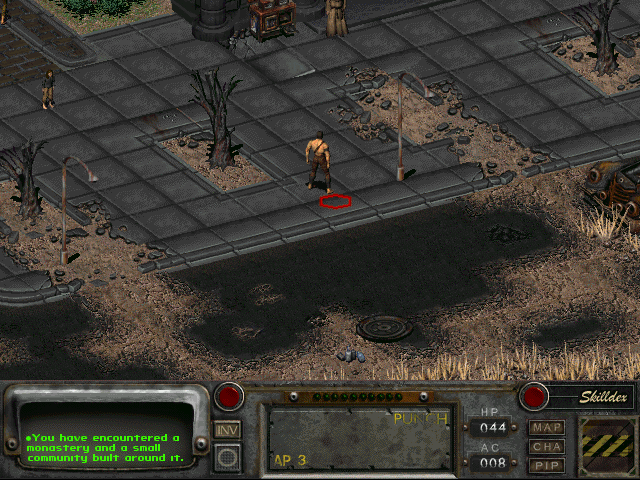
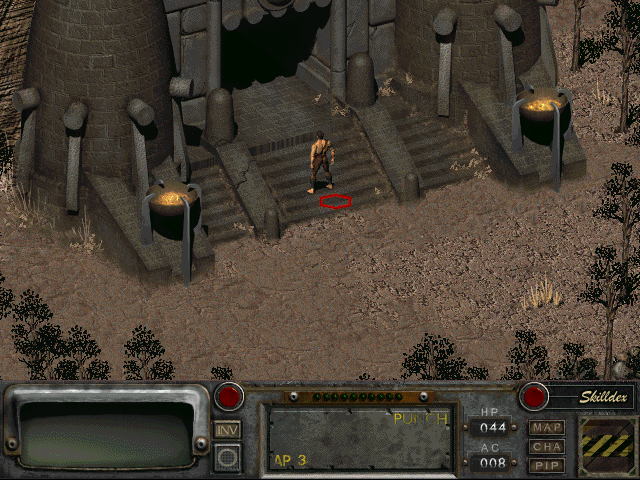
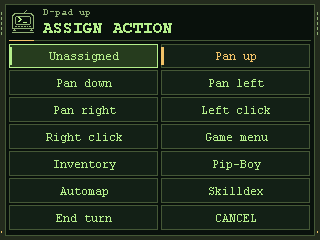
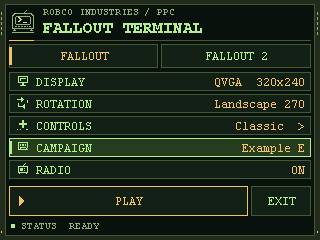
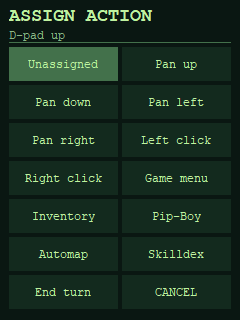
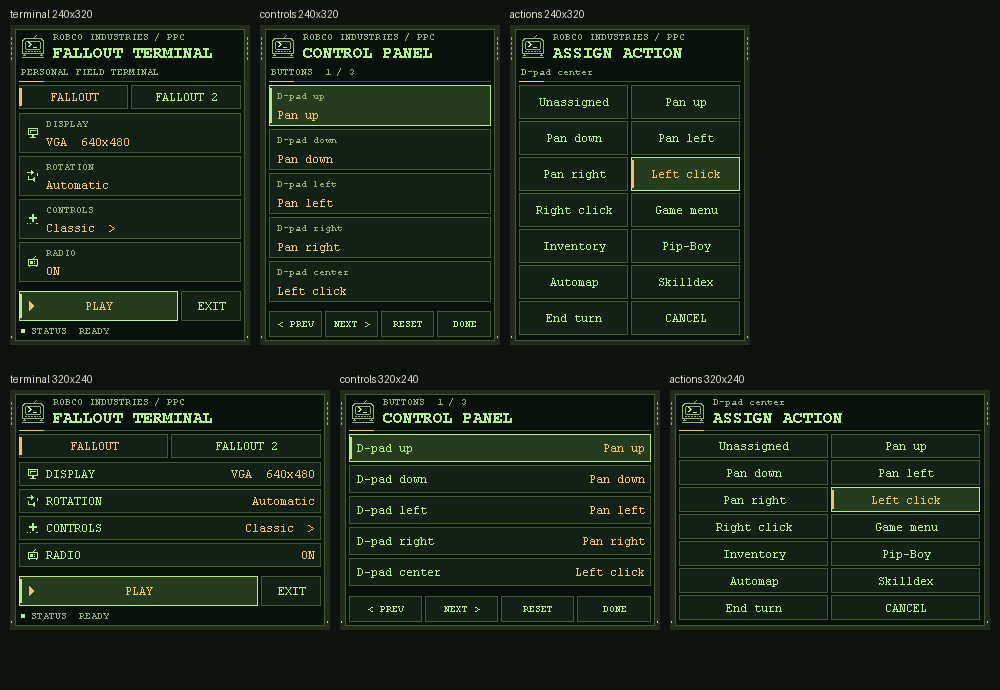
Fallout 2 is in. Install either game or both, then pick what you want to play from the same launcher. You can choose VGA or QVGA, set the rotation, remap the buttons and switch between the original game and your mods under Campaign.
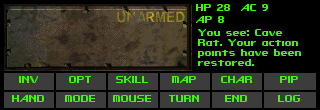
QVGA has clearer save and load screens in both games, with an on-screen keyboard for naming saves. I also fixed some overlapping Pip-Boy text and made the item count prompts easier to use.
Fallout 1 now tries a smaller art cache if it runs short of memory at startup. That change is in both VGA and QVGA.
Fresh install
- Run Fallout-Terminal-Setup.exe on your Windows PC. Use game files from your own copy of Fallout 1, Fallout 2 or both.
- Pick an installed game folder, a supported CUE/BIN or ISO, or a ZIP containing a disc image. Keep a CUE and its BIN together. If setup can’t read your image, use an installed PC game folder.
- Pick a destination and click Create SD folder. Copy the whole Fallout Terminal folder to your SD card if you built it on your PC.
- On the Pocket PC, open FalloutTerminal.exe. Pick a game, choose QVGA (320×240) or VGA (640×480), then tap Play. Both resolutions share that campaign’s saves.
Updating from v1.0
- Back up your game folder or SD card.
- In Windows setup, select Update existing Pocket PC install. Browse to your old Fallout 1 game folder, a standalone Fallout 2 folder or the folder holding FalloutTerminal.exe.
- Click Update install. Setup updates the game EXEs, SDL and the launcher, and keeps your game files, settings, saves and mods. On a standalone install, look for FalloutTerminal.exe beside your old game EXEs.
Mods
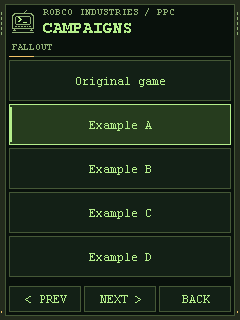
Prepare the mod in a separate PC game folder first. In setup, use Add mod during a fresh install or choose Add mods to an existing Pocket PC install. On the handheld, pick the game, tap Campaign and select your profile. Use Original game to switch back. Each profile keeps its own saves and takes roughly 500 MB or more. Compatibility varies, especially with mods that need desktop sfall features.
Testing and logs
On Windows I tested a fresh install of each game, an upgrade from Fallout 1 v1.0 and an upgrade with both games installed. Setup kept saves, settings and mods. I also checked that it put the old files back when a locked EXE interrupted the update. The launcher picked the right game and display builds in PC tests. The final build still needs a handheld run, including a retest of the startup fix on the Pocket Loox N560.
If you hit a crash, post your handheld model, Windows Mobile version and display mode under Discussion & issues. You can attach fallout_debug.log for Fallout 1 or fallout2-boot.log, fallout2-debug.log or fallout2-crash.log for Fallout 2 if it was created. The logs sit beside the game EXE. Copy them before restarting the game.
Use this with an ARM Pocket PC running Windows Mobile 5 or 6. The Windows installer is unsigned.
Both game engines are Pocket PC ports of Fallout Community Edition. All you need from this site to set up or update the games is this Windows EXE.
Separate Fallout 2 RPU + sfall build
theres also a separate Fallout2-PPC-RPU-sfall.zip in Downloads. it has RPU 2.4.34 and native sfall support, with companion combat control on. this ZIP uses its own folder, not the Windows setup above.
unzip it, add your own Fallout 2 master.dat and critter.dat beside the EXEs in Fallout2-RPU, then copy that whole folder to your SD card. run Fallout2.exe for VGA or Fallout2_QVGA.exe for QVGA. keep the supplied settings, start a new game and keep normal saves separate. both screen modes passed emulator startup checks; a full hardware playthrough is still to do.